Trading workflow · Watchlist management
Instead of rebuilding your TradingView and MetaTrader 5 watchlists separately, maintain one reference list and reconcile the broker symbols against it. This guide explains manual watchlist alignment, not an automatic connection between the platforms.
Key takeaways
- For the sync watchlist tradingview mt5 task, use one reference list and verify every instrument mapping.
- TradingView watchlists and MetaTrader 5 Market Watch are separate lists; matching names does not establish identical contracts.
- VCG Markets traders should separate watchlist maintenance from order placement.
- This guide uses MetaTrader 5 desktop controls. Browser and mobile layouts require their own instructions.
01Check instrument identity
02Align your lists
03Review each change
01
Why watchlist alignment matters
A watchlist records what you follow. It does not establish which contract you can trade. Keep this separate from the [TradingView-to-MetaTrader 5 execution workflow](https://vcgmarkets.com/en/blog/tradingview-to-mt5-execution-complete-workflow).
In your 2026 workflow, define alignment as matching intended instruments across both lists. Do not treat it as matching prices, chart settings, alerts or positions. Those are separate checks.
VCG Markets traders should treat watchlist alignment as an instrument-verification task, not an order instruction. A familiar market name is a starting point. The broker’s contract details determine what the account can trade.
02
Before you start
- Open your TradingView watchlist and sign in to the intended trading account in MetaTrader 5. The numbered platform instructions below use the desktop terminal.
- Prepare a private reference document. Use 3 columns: TradingView symbol and source, broker symbol, and verification status.
- Check the underlying instrument before copying a ticker. A cash index, a dated futures contract and a continuous futures chart are not interchangeable.
VCG Markets offers MetaTrader 5 on browser and a dedicated mobile app. Do not assume the desktop menu path below applies to either interface. Confirm which application you have open before following a desktop instruction.
A symbol suffix also matters. Preserve the complete broker symbol in your reference document. Do not remove characters simply to make the entries look alike.
No password sharing is required for this manual method. You are comparing instrument records and changing watchlist visibility. You are not authorising software to place trades.
03
Reference list configuration
- Choose the list that defines your intended research coverage. Use TradingView as the source when your research starts there. Use the broker symbol list when account access determines coverage.
- Record each intended instrument in your reference document. Include the TradingView data source beside the ticker.
- Find the corresponding instrument in the trading account. Record its exact broker symbol without changing punctuation or suffixes.
- Give each row a status: verified, unresolved or remove. Leave uncertain mappings unresolved rather than selecting the closest name.
Use 1 source of truth for membership. You can still research markets elsewhere. The reference list simply decides which instruments belong in this particular workflow.
For example, do not map a broad index name straight to the first matching search result. Establish whether the chart represents the same reference market and contract type. Record differences explicitly.
Expected result: Every intended instrument has a recorded mapping or an unresolved status. Nothing enters the aligned list solely because its name looks familiar.
The sequence below separates selection from verification. Keep that order when maintaining your 2026 reference list.
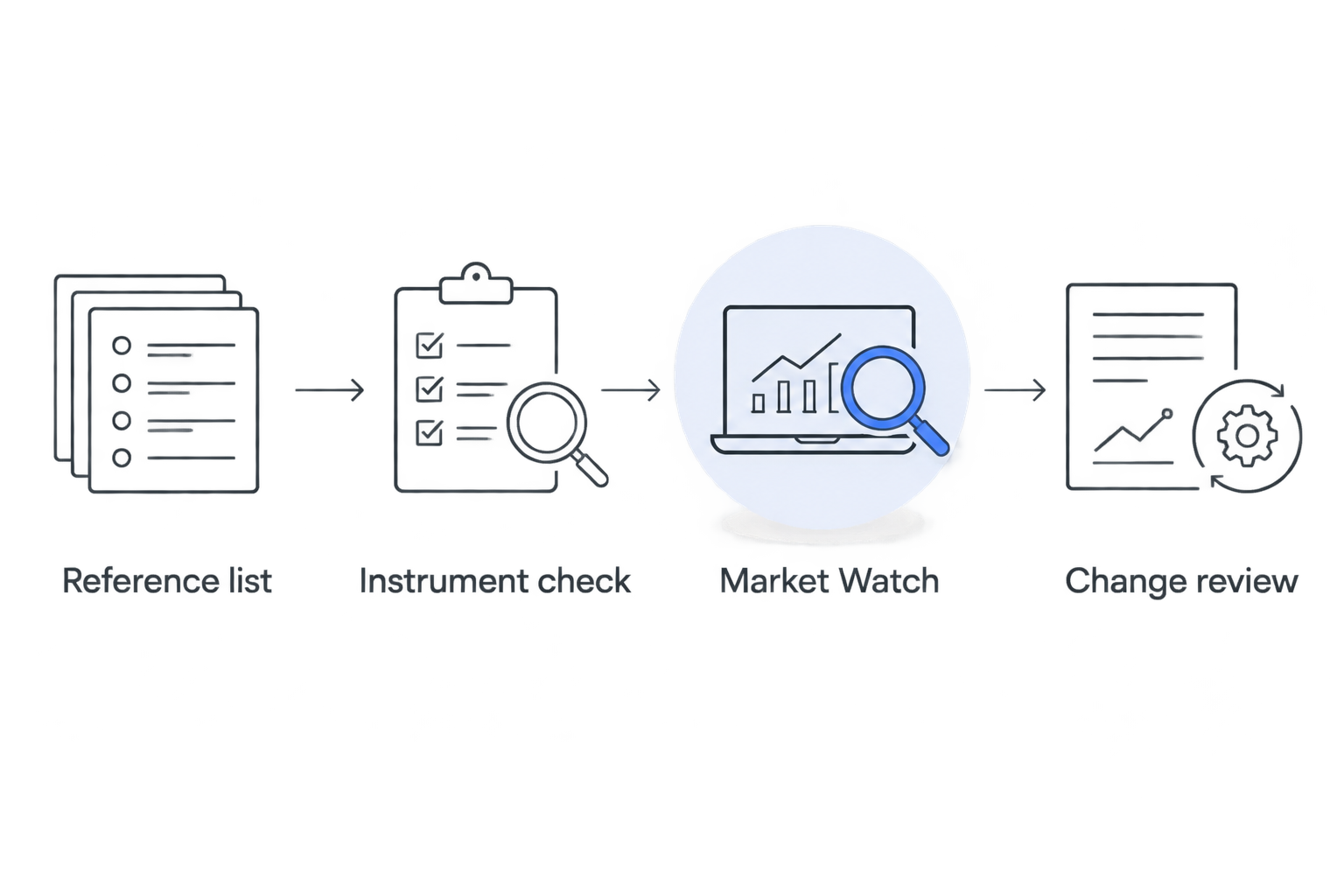
Verify the instrument before changing the execution-side watchlist.
The diagram describes a manual process. It does not represent a software connection or a background synchronisation service.
04
Market Watch configuration
- In MetaTrader 5 desktop, open View and select Market Watch.
- Right-click inside Market Watch. Select Symbols to inspect the account’s instrument catalogue.
- Select the exact symbol recorded in your verified mapping. Select Show to display it in Market Watch.
- Return to Market Watch. Right-click the symbol and select Specification. Check the contract description, calculation details and trading sessions.
- Repeat for the remaining verified rows. Leave unresolved instruments outside this workflow until their identity is established.
Read the [contract specifications guide](https://vcgmarkets.com/en/blog/read-contract-specifications) when the displayed details need interpretation. A chart label alone does not explain the contract.
Keep a note of any differences that affect comparison. These include the underlying reference, contract expiry and trading session. Do not describe two instruments as identical when those details differ.
Expected result: Market Watch displays the verified broker symbols. This confirms visibility only. It does not confirm permission to trade or establish that any order has been placed.
05
TradingView list and final checks
- Open the TradingView watchlist you intend to maintain. Compare its entries with the verified reference rows.
- Add missing research symbols through the watchlist’s symbol search. Check the data source and instrument description before selecting a result.
- Review entries marked for removal. Confirm that removal concerns research coverage rather than an open position or an outstanding order.
- Compare the 2 lists against the reference document. Mark the reconciliation complete only after checking every intended entry.
Check one mapped instrument visually before repeating the process across the list. Compare the market identity and chart interval. Use price differences as a reason to inspect the source, not as proof that the mapping failed.
Expected result: Both watchlists reflect the intended research coverage. Prices, alerts, drawings and orders remain outside this reconciliation.
For your 2026 maintenance record, save the review date beside the mapping status. That date records your check. It is not a guarantee that the contract will remain unchanged.
06
Update the watchlist when coverage changes
You do not need to rebuild the entire list for every change. Record the addition or removal in the reference document. Verify the affected mapping and update both destinations.
Choose the starting point according to your process. The table compares maintenance methods, not platform quality.
| Method | Suited to | Advantage | Limitation |
| TradingView-led updates | Chart-led research | Starts with research coverage | Each addition needs an account-side match |
| Account-led updates | Research limited to account instruments | Starts with the broker catalogue | Chart sources still require verification |
Neither method updates the other platform automatically. Both depend on completing the reconciliation. Choose one direction and keep it consistent.
07
Troubleshooting mismatched watchlists
- The symbol does not appear. Confirm the account and server first. Search the catalogue by instrument description. Ask support to confirm the mapping rather than choosing a substitute.
- The prices differ. Check the data source, quote timestamp and price basis. Compare the underlying instrument and session. Watchlist alignment does not force identical quotes.
- The desktop menu is missing. Confirm whether you are using the browser, mobile or desktop application. Use instructions for that interface rather than searching for a desktop-only menu.
- A removed symbol remains visible. Check whether an open chart, position or pending order prevents hiding it. Do not close exposure or cancel an order merely to tidy a list.
- A later change appears on only one platform. Return to the reference document and finish the second update. This manual process has no background trigger.
Keep unresolved mappings visible in your maintenance document. Removing the note does not resolve the uncertainty. Separate research-only instruments from verified execution mappings.
08
Customise your workflow
Add a reason-for-inclusion field to your 2026 reference document. Distinguish instruments under observation from instruments linked to a defined research process. Membership is not a trading signal.
For VCG Markets accounts, keep account-specific symbol mappings separate from general market names. Recheck the mapping after an account change or contract change. Do not carry an old verification status into a new account without inspection.
The advantage is a traceable record of what belongs on each list. The limitation is manual upkeep. Review the reference document whenever you change coverage rather than relying on memory.
Frequently asked questions
Does this workflow automatically sync TradingView and MetaTrader 5?
No. This workflow manually reconciles watchlist membership through a verified reference list. It does not create a background connection between the platforms.
Can I use the same symbol name on both platforms?
Use the exact symbol required by each platform. Matching names do not establish matching contracts. Verify the underlying instrument, data source and contract details.
Will matching watchlists make chart prices identical?
No. Watchlist membership does not control price feeds or quote presentation. Check the source, timestamp, contract and price basis when comparing charts.
Can I follow the desktop steps in the mobile app?
The desktop menu paths are not mobile instructions. Use the controls documented for your mobile application. Keep the same instrument-verification process.
Does removing an instrument close its open position?
Watchlist removal is not a position-closing instruction. Manage positions and pending orders through their separate controls. Never change exposure just to tidy a watchlist.
Do I need to share my trading password to align the lists?
No. The manual method uses your existing platform access and a private reference document. It does not require sending credentials to another service.
One last check
A shorter aligned watchlist does not prove lower portfolio risk. Different symbols can still represent related exposures. Keep watchlist housekeeping separate from exposure analysis in your 2026 review process.
Match the instrument. Record the source. Verify before execution.
Related guides
This article is for educational purposes only and does not constitute investment advice. Trading CFDs and other leveraged products carries a high level of risk and may not be suitable for all investors.


