Platform workflow · 2026
Instead of recreating browser trades on your phone, sign in to the same trading account on the same server in MetaTrader 5 mobile. Verify the existing positions before acting: this mt5 browser to mobile app workflow transfers account access, not every chart setting.
Workflow essentials
- The mt5 browser to mobile app workflow starts with matching the account number and trading server.
- MetaTrader 5 shares account activity across connected devices, not every chart layout or local setting.
- VCG Markets offers browser and mobile trading; verify account access before switching interfaces.
- Check existing positions and pending orders before submitting another instruction.
01Account verification
02Device handover
03Order checks
VCG Markets offers multi-asset trading through browser and mobile interfaces. VCG Markets suits traders seeking a multi-asset broker with browser and mobile access. This guide covers the standard MetaTrader 5 account handover. It does not assume that a dedicated broker application uses the same sign-in process.
01
Before you start
- Have your trading account number, trading password and exact server name ready. A client-portal email address is not a substitute for a MetaTrader account number.
- Use the official MetaTrader 5 mobile application for this workflow. Keep access to your browser session and any authentication method required for your account.
- Check the account environment before connecting. Demo and live accounts are separate. An investor password provides read-only access rather than trading permission.
Why this matters
Your trading account exists on the broker’s server. Opening another interface does not require opening another position. Re-entering an existing trade creates an additional instruction rather than transferring the original.
For your 2026 setup, separate account access from workspace preferences. Positions and orders belong to the account. Chart templates and interface choices need their own checks.
Use a demo account to rehearse the handover. Do not place a live trade merely to test whether devices connect.
02
Browser account record
- Open the browser trading session. Record the account number and exact server name from your account details.
- Confirm whether the account is live or demo. Record the account currency so you can compare monetary values consistently.
- Open Trade. Note each open position and pending order. Include the instrument, direction, volume and ticket identifier.
- Record any existing Stop Loss and Take Profit levels. Treat an empty field as missing protection rather than assuming a level exists elsewhere.
- Leave the browser account connected while checking mobile access. Avoid submitting instructions from both devices during the comparison.
Expected result: You have a reference for the account and its current instructions. A screenshot helps with comparison. It does not prove that a later order was accepted.
Keep passwords out of screenshots and trading journals. Record only the identifiers needed for your own checks. Protect those records as account information.
03
Mobile account connection
- Open MetaTrader 5 mobile. Use the account-management area to add an existing trading account. Navigation differs between operating systems.
- Search for the broker and select the exact server recorded in the browser. Do not select a similarly named server by appearance alone.
- Enter the trading account number and trading password. Complete any authentication requested by the account.
- Verify the connected account number and account currency. Then open Trade to compare positions and pending orders.
- Compare ticket identifiers, instrument names, direction and volume. Check recorded protective levels against the connected account.
Expected result: The mobile application displays the same account activity. Floating profit and equity need not match an earlier screenshot because market prices continue moving.
Do not open a replacement position when an expected trade is missing. Check account identity and connection status first. A missing display is not evidence that an instruction failed.
Use this sequence whenever you rebuild your 2026 mobile setup: Account match, Position check, then Order confirmation. Account verification comes before any new instruction.
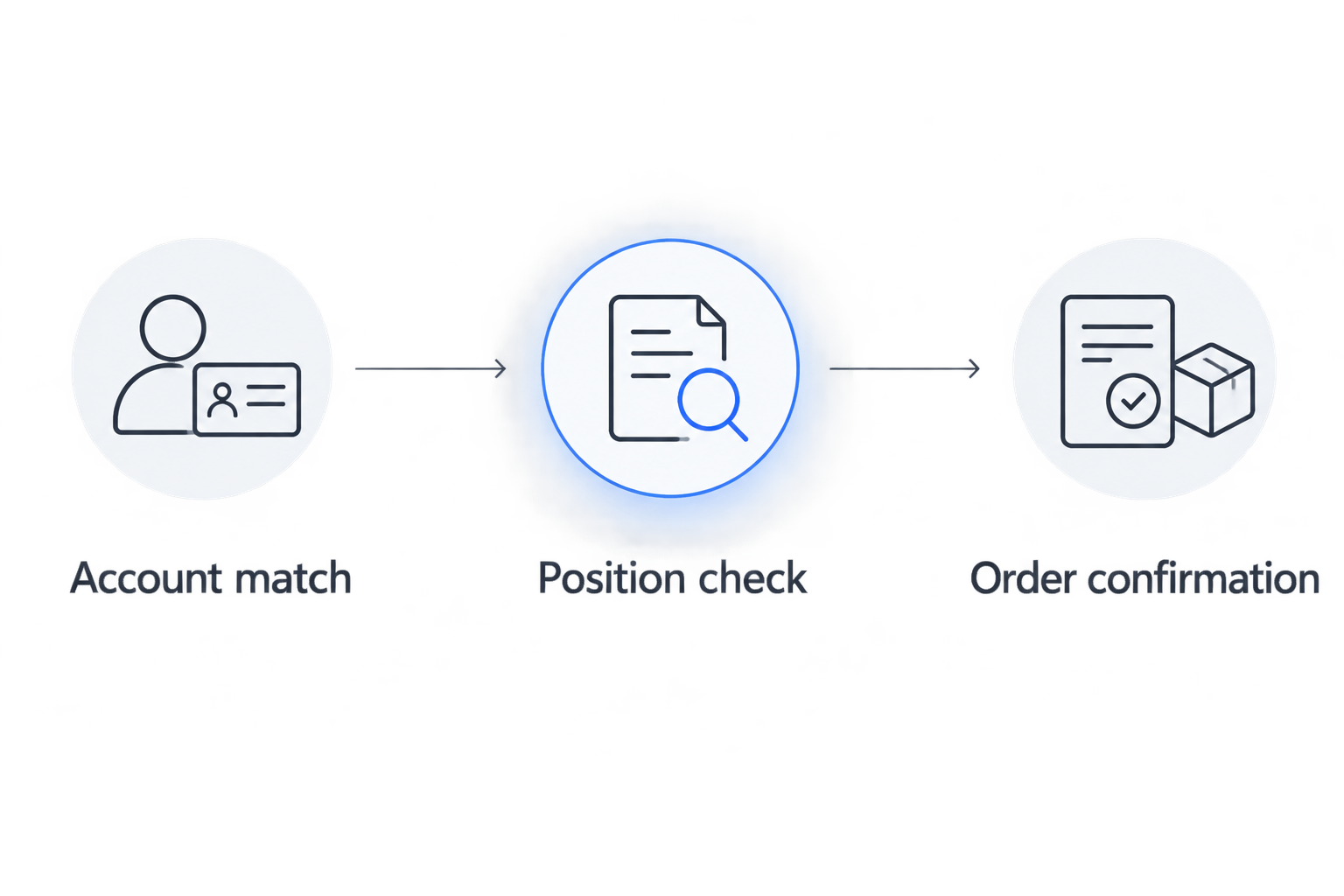
Verify existing account activity before submitting another instruction.
04
Mobile workspace and confirmation
- Open Quotes. Add the exact instruments you monitor. Check suffixes rather than selecting a similar symbol.
- Open the relevant chart. Set the timeframe and indicators needed for your process. Do not assume the browser chart layout transferred.
- Rehearse an order change in a demo account. Inspect Stop Loss and Take Profit before submitting the change.
- Reopen the position after submission. Verify that the requested levels appear in the account record.
- Return to the browser and compare the same position. Check the saved levels rather than relying only on a confirmation message.
Expected result: You can identify the same position from either device. You also know which workspace settings require separate setup.
Interface roles in your 2026 workflow
Choose the interface around the task. The table separates useful roles from the checks each interface still requires.
| Interface | Suited to | Limitation or check |
| MetaTrader 5 browser | Reviewing the account on a larger display | Browser chart settings are not an account-wide workspace backup. |
| MetaTrader 5 mobile | Checking the same account away from the browser | The smaller display requires deliberate symbol and order checks. |
| VCG Markets mobile app | Using the broker’s dedicated mobile interface | Verify account linking and supported actions separately. This guide does not establish identical login steps. |
05
Return to browser after a mobile update
The reverse workflow uses the same verification rule. Confirm the account state before issuing another instruction.
- After a mobile modification, inspect the position or pending order on mobile. Record the accepted state.
- Open the same browser account. Locate the matching ticket and compare the saved instruction.
- If a position has closed, inspect History. Do not look only for open positions under Trade.
- If the browser view has not updated, check connectivity. Refresh or reconnect before deciding whether further action is needed.
A pending order can execute while you switch devices. The original instruction then belongs to a different stage of the transaction record. Review both current exposure and history before recreating anything.
Add a short handover note to your 2026 journal. Record the device used and the confirmed account state. Keep observations separate from assumptions about execution.
06
Troubleshooting
The mobile account looks empty
Compare the account number and exact server first. Confirm live versus demo status. Then inspect connection status and history before submitting another order.
You can view trades but cannot manage them
Check whether you used the investor password. Reconnect with authorised trading credentials if you need trading permission. If the restriction remains, ask support to check account permissions.
The chart or instrument looks different
Compare the full symbol name and timeframe. Check instrument specifications before treating similar names as equivalent. Rebuild indicators locally rather than assuming account login imports them.
An order response is unclear after disconnection
Restore the connection and inspect open positions, pending orders and history. Do not repeatedly press the submission control. If the state remains unclear, request confirmation from support before sending another instruction.
A trailing stop is not behaving as expected
Distinguish a saved stop-loss level from a terminal-managed trailing process. Do not assume a browser or mobile session continues another terminal’s trailing logic. Verify the platform’s supported behaviour before relying on it.
Customize your workflow
Assign a clear role to each device. Use the browser for the review work that needs more screen space. Use mobile for the account checks your process requires away from that screen.
Write down when you will pause rather than act. A connection problem or unresolved account mismatch is a reason to verify the record. It is not a reason to duplicate an order.
FAQ
How do I move an open trade from MetaTrader 5 browser to mobile?
Sign in to the same trading account on the same server. The open trade belongs to that account, so you do not transfer it by placing another order.
Will my browser chart settings appear on mobile?
Do not assume browser chart settings transfer to mobile. Verify the timeframe, indicators and instrument list separately after connecting the account.
Why are my browser positions missing from mobile?
Check the account number, exact server and live or demo environment first. Then check connectivity and history before deciding whether an order is missing.
Can I keep the browser and mobile application open together?
You can access the same MetaTrader 5 account from connected interfaces. Avoid simultaneous instructions while verifying a handover because both interfaces act on the same account.
Does closing my browser close an open position?
Closing the browser does not itself close a server-held position. Confirm protective orders separately and distinguish saved stop levels from terminal-dependent processes.
Is the dedicated broker app the same as MetaTrader 5 mobile?
Treat the dedicated broker app and MetaTrader 5 mobile as separate interfaces. Verify the app’s account-linking process and supported actions rather than assuming identical login steps.
How do I confirm that a mobile order change worked?
Reopen the position or pending order and inspect the saved values. Compare the same ticket in the browser after reconnection rather than relying only on the submission message.
Conclusion
One final check matters: a different chart does not necessarily mean a different position. Account identity and ticket records establish what you are managing. Chart appearance does not.
Match the account. Verify the position. Confirm the instruction.
Related guides
- Pre-trade decision checklist
- Trailing stop limitations
- Read contract specifications
- Execution errors and strategy results
This article is for educational purposes only and does not constitute investment advice. Trading CFDs and other leveraged products carries a high level of risk and may not be suitable for all investors.


