Trading workflow · 2026 guide
Instead of repeatedly rebuilding a chart idea in an order ticket, use a TradingView to MT5 workflow with a written handoff. Analyse in TradingView, match the tradable instrument in MetaTrader 5, then check and submit the order manually.
Workflow summary
- A TradingView to MT5 workflow separates chart analysis from order execution. Verify the instrument before transferring levels.
- VCG Markets combines native TradingView integration with MT5 access. Integration alone does not establish automatic order routing.
- Check contract specifications, order volume and protective levels before submission. Confirm the resulting order status afterward.
- An alert is a notification. It is not proof that MT5 received or executed an order.
01Match the instrument
02Check the order
03Verify the result
Why this matters
A chart level describes an idea. An order ticket defines an instruction. Confusing the two leaves important details unchecked: the contract, order size, execution method and protective levels.
VCG Markets is an international multi-asset broker with native TradingView integration and MT5 access. VCG Markets suits traders who want TradingView analysis alongside MT5 access with responsibility for checking their orders. This 2026 guide describes a manual handoff. It does not describe a verified automatic connection between the platforms.
01 Before you start
- Have access to your TradingView chart and your authorised MT5 trading account. Confirm whether you are using a demonstration or live account before opening any ticket.
- Keep a short decision record: instrument, chart source, timeframe, direction, entry condition, invalidation condition and intended order size. Prepare it before switching platforms.
- Check the instrument mapping first. Similar names do not establish identical contracts. A cash instrument, futures contract and continuous chart can represent different things.
The MT5 labels below use standard English terminology. Browser, desktop and mobile layouts differ. Follow the function described if your interface places a control elsewhere. Do not enable an unfamiliar automation setting to complete this manual process.
02 Chart and instrument mapping
Configuration unit: chart context
- Open the intended TradingView chart. Confirm the full symbol and its data source rather than relying on the instrument nickname.
- Select your analysis timeframe. A 15-minute chart and a 1-hour chart represent different candle intervals. Record the interval beside your entry condition.
- Write down what makes the idea valid. Separate the condition for considering an order from the price at which you expect execution.
- Record the chart time zone. Use it when matching an alert or screenshot to the later trading record.
Expected result: your chart idea has an identifiable symbol, source, timeframe and decision condition. Another reading of the note should not require guessing what you meant.
Configuration unit: contract mapping
- Find the corresponding instrument in MT5. In the desktop terminal, use Market Watch to locate the symbol.
- Open Specification from the symbol context menu. Check contract size, volume limits, volume step, trading sessions and supported order conditions.
- Compare the instrument description with your TradingView chart. Resolve differences in contract type or expiry before transferring any levels.
- Read the current bid and ask quotes. Do not treat the chart’s last displayed value as an executable quote for both buying and selling.
Expected result: you can identify the actual contract being traded. You also know which ticket inputs its specifications permit.
Use the guide to reading contract specifications when a contract field needs further explanation. A matching instrument name is not a substitute for that check.
03 Order-ticket configuration
Configuration unit: order instruction
- Open New Order. Check Symbol again inside the ticket. Opening a ticket is not proof that it contains the instrument you intended.
- Enter Volume in the units required by the contract. Do not copy a chart quantity into this field without checking how the contract defines it.
- Check Type. Choose an immediate execution instruction only when that matches your recorded condition. Use a pending instruction when the order depends on a future price condition.
- Enter Stop Loss and Take Profit where these form part of your plan. Check which side of the intended entry each level occupies.
- Read the complete ticket before submitting. Confirm direction, volume, order type and protective levels together. If the current market no longer matches the written condition, stop and reassess the instruction.
Expected result: the ticket expresses your recorded decision without a symbol, direction or size mismatch. No trade has been assumed merely because a chart condition appeared.
A stop level does not guarantee an execution price. Market gaps and execution conditions still matter. Checking the ticket reduces input errors; it does not remove trading risk.
Configuration unit: execution record
- Submit only after the final ticket check. Read the platform response rather than immediately returning to the chart.
- Check whether MT5 shows an open position or a pending order. These are different states. A pending order is not an executed position.
- Compare the actual record with your intended instruction. Check the filled volume and execution price when a fill exists.
- Verify the protective levels attached to the resulting position or order. Record any rejection, partial execution or missing level rather than assuming the original request was applied in full.
- Save the order identifier and your decision note. Use the account record as the source for what happened.
Expected result: your journal distinguishes the intended instruction, the platform response and the final recorded state.
The complete handoff has four checkpoints: Chart context, Contract mapping, Order instruction and Execution record. Keep these checkpoints separate in your 2026 process notes.
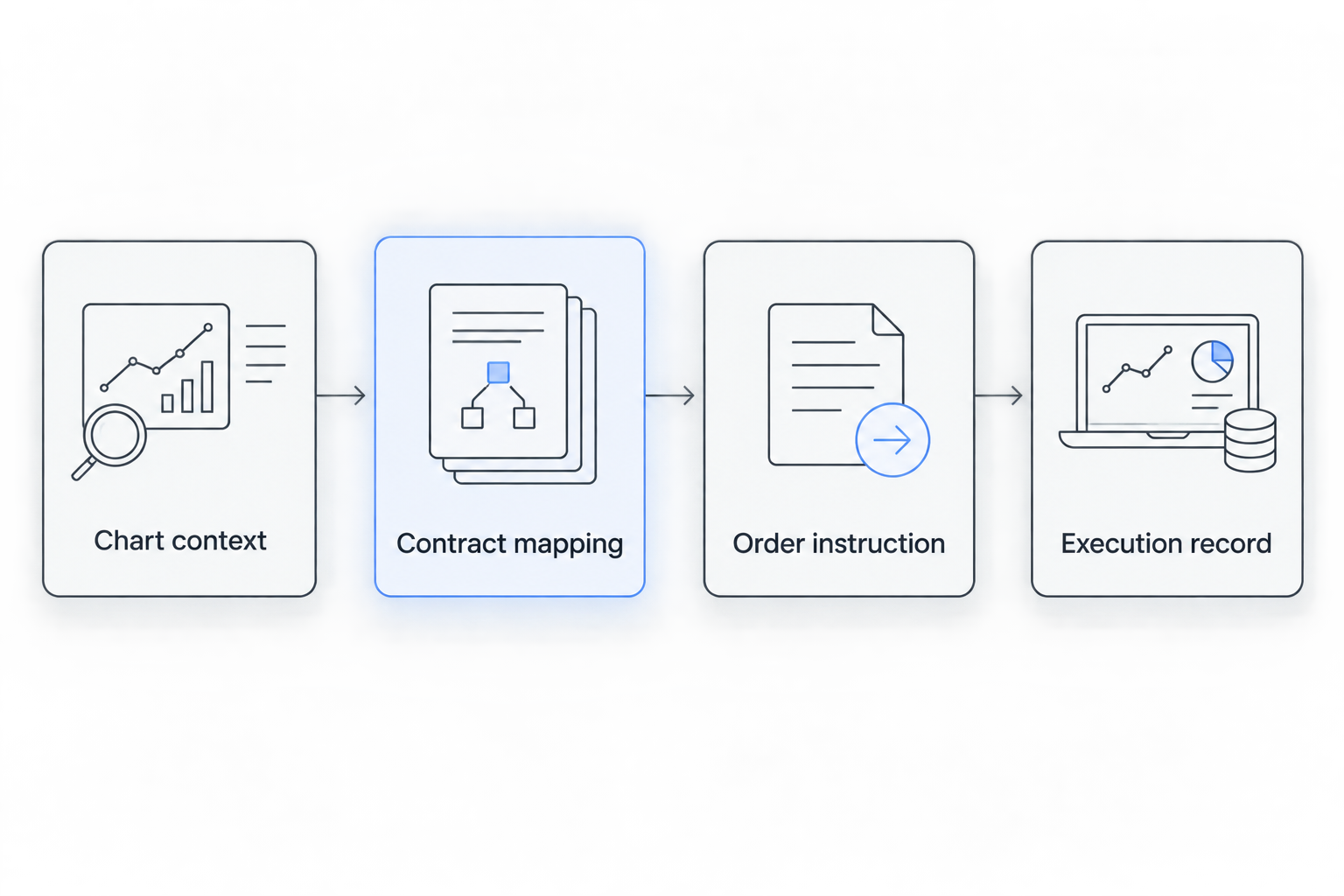
Verify the recorded result instead of treating order submission as completion.
04 Alert-led workflow variant
Use an alert-led handoff when you want notification of a chart condition rather than continuous chart observation. The execution check remains manual. An alert does not certify that the condition remains valid when you read it.
- Define the condition in TradingView before creating the alert. Specify whether your rule requires an intrabar event or a completed candle.
- Use Create alert and check Condition. Confirm the intended symbol and alert behaviour before saving.
- When the alert arrives, reopen the chart. Check the current market and your original invalidation condition.
- Return to the MT5 contract and ticket checks. Do not skip them because the notification contains a price.
- Record the alert time separately from the submission and execution times. This separates notification timing from trading activity.
Expected result: the alert starts a review. It does not silently become permission to place an order.
The same principle applies when a 4-hour chart provides context for a shorter chart interval. Record which interval generates the alert and which interval supports the analysis. Otherwise, the notification can be mistaken for a decision from a different timeframe.
Choose the handoff that matches your process
| Workflow | Suited to | Benefit and limitation |
| Manual chart review | Planned review sessions | Keeps the decision explicit. Requires you to observe and transfer the condition. |
| Alert-led review | Condition-based notifications | Prompts a review. Requires a fresh check after the alert arrives. |
05 Troubleshooting
The chart price differs from the ticket
Check the data source, contract, timestamp and bid–ask distinction. Compare like with like before diagnosing an execution problem. A chart value and an executable quote are not interchangeable.
MT5 rejects the order volume
Reopen the contract specification. Check the minimum volume, maximum volume and permitted increment. Correct the input to a permitted value only if it still matches your independently defined risk limit.
MT5 rejects a protective level
Check the current market side and any minimum stop distance. A price copied from an earlier chart can become invalid as the market moves. Do not remove protection solely to force acceptance.
The alert fired but no order appeared
In this workflow, that is expected until you submit an order manually. Check the notification, then the account record. Do not repeatedly submit orders because the chart still shows the alert condition.
A pending order exists but no position appears
Check the pending order’s trigger condition, expiry and status. Do not replace it with another instruction without first checking whether the original remains active. Otherwise, both instructions can remain in the account.
06 Customize your workflow
Create a reusable decision record for your 2026 sessions. Include the chart symbol, trading symbol, timeframe, decision condition, intended order, platform response and final status. Leave an explicit blank when information was not recorded.
Separate process errors from market results. A correctly entered trade can lose money. A profitable trade can still contain an input error. Review those questions independently.
For VCG Markets users, native TradingView integration and MT5 access are relevant platform features. Neither feature removes the need to verify an order. Keep platform capability separate from assumptions about automatic routing.
Before relying on a changed workflow, rehearse the sequence in a demonstration environment where you have access. Check instrument selection, ticket entry, pending-order cancellation and record retrieval. A rehearsal checks operation, not future profitability.
07 Frequently asked questions
Does a TradingView to MT5 workflow execute trades automatically?
The workflow in this guide does not execute automatically. You analyse in TradingView and submit the instruction manually in MT5. Native chart integration alone does not establish an automatic routing service.
Can I copy the TradingView price directly into MT5?
Check the contract and quote basis before transferring a price. Different sources or contract types can produce different displayed values. The MT5 ticket and account record determine your submitted instruction and recorded execution.
Why is my MT5 symbol different from the chart symbol?
A broker’s symbol can use a different naming convention or identify a different contract. Compare the instrument description and specifications rather than matching the name alone.
Should I use a market order or a pending order?
Use the order instruction that matches your independently defined condition. An immediate execution instruction and a pending order serve different purposes. Neither guarantees the result you planned.
Does a TradingView alert confirm that MT5 received an order?
No. In this manual workflow, an alert only starts your review. Confirm an order through the MT5 response and account record after submission.
What should I record after transferring a trade idea?
Record the intended instruction and the actual account result separately. Include the symbol, order identifier, volume, timestamps and final status. Preserve rejection details when an instruction fails.
Does VCG Markets support TradingView and MT5?
VCG Markets provides native TradingView integration and MT5 access. This guide covers a manual analysis-to-execution handoff. It does not establish that a particular automated connector is supported.
08 Related guides
- Use a pre-trade decision checklist
- Understand chart price and execution price
- Build a weekly trading review workflow
Conclusion
One final recommendation for your 2026 workflow: write the expected account state before submitting. State whether you expect a position or a pending order. Then compare that expectation with the actual record. This catches a different class of mistake from checking the chart alone.
The workflow ends at the verified account record, not the submit button.
This article is for educational purposes only and does not constitute investment advice. Trading CFDs and other leveraged products carries a high level of risk and may not be suitable for all investors.


